Libraries
Tell Parallax which folders to look after, for videos, images and audio.
A library is a folder that Parallax keeps track of. Everything else in the app works on the libraries you add, whether they hold videos, photos or music.
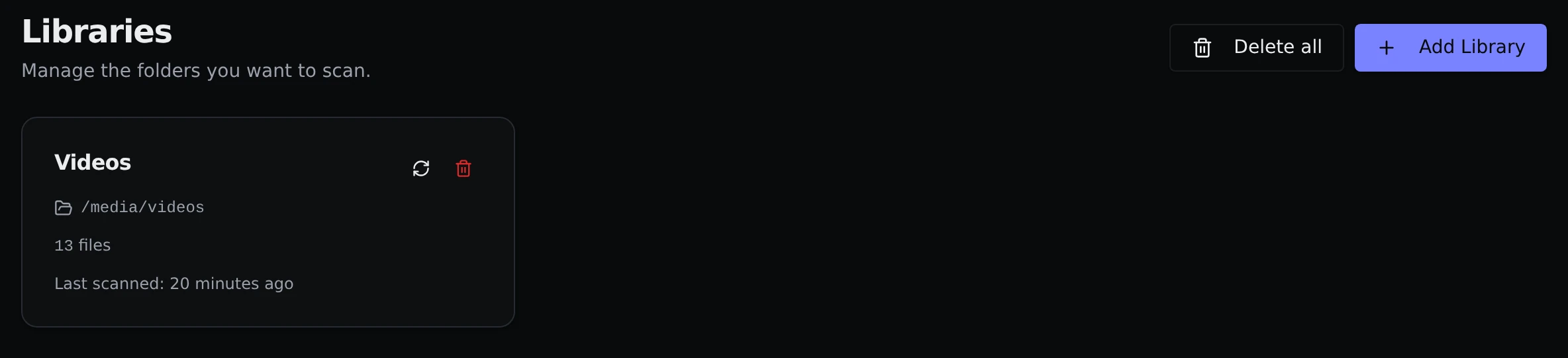
Each library has a card showing its name, the folder it points at, how many files it holds and when it was last scanned.
Where to find them
Videos, images and audio each have their own Libraries page, under Videos, Images and Audio in the top bar. They look and work the same way. The Audio section stays tucked away until you add your first audio library.
Adding a library
Click Add Library, pick a folder and decide whether to scan it right away. The first scan guide walks through it with screenshots.
If you tick Split into sub-libraries (video libraries only), you get one library for each folder inside the one you picked. Each is named after its folder, and its files belong only to that library. It is a good fit when one big folder holds several collections. Folders that already belong to a library are skipped.
A folder can only be in one library of each type. Parallax refuses a folder that is already in a library, sits inside one, or contains one, because two libraries covering the same files would fight over them. A video library and an audio library can share a folder, since each only keeps track of its own kind of file.
Image libraries also let you choose what a scan prepares: information for finding duplicates, and information for Content Review. The choices are the Duplicates (pHash) and Content review (NudeNet) tick boxes, in the Add dialog and in the scan menu on an image library's card.
Scanning
The refresh button on a video library's card (hover it to see Scan for new / removed files) scans that library again. On an image or audio library the same button has a scan icon. On an image library it opens a small menu with Scan new images and Reset & rescan all, which throws away that library's picture records and thumbnails and starts again from scratch. A scan finds new files, notices files that have gone, and reads each file's details such as its length, size and format. It never changes your files.
If a library's folder can't be found, for example because a drive isn't plugged in or a network share isn't mounted, the scan stops with an error and the library keeps everything it knew. Parallax does not treat a missing folder as "every file was deleted". Reconnect the drive and scan again.
You rarely need to press it. Parallax watches your library folders and updates on its own a few seconds after something changes, including when you add, rename or delete files outside the app. It also does a full check every so often to catch anything missed.
A few things are always ignored: hidden files, the _originals and _quarantine backup folders, and temporary files that Parallax itself is in the middle of writing.
Removing a library
The trash button removes a library from Parallax. Your files stay exactly where they are. Only Parallax's list of them (and the thumbnails it made) is removed.
If the library has backups lying around, Parallax tells you how many and how much space they use, then asks what you want to do. For video and audio libraries those are the backups in _originals folders, and for image libraries they are quarantined images.
- Delete library and originals removes the library and also deletes those backups from your disk.
- Review originals first takes you to the Originals page so you can look through them.
- Keep originals on disk removes the library and leaves the backups where they are.
Delete all removes every library of that type in one go and asks the same question.