Account and sign-in
Create your account, sign in, change your password and sign out.
Parallax asks you to sign in before it shows anything, because it can delete files. There is exactly one account. It is yours, and nobody else can ever be added.
The first time you open Parallax
The first visit shows a page that asks you to create your account. Pick a username and a password, type the password twice and press Create account. You are signed in straight away.
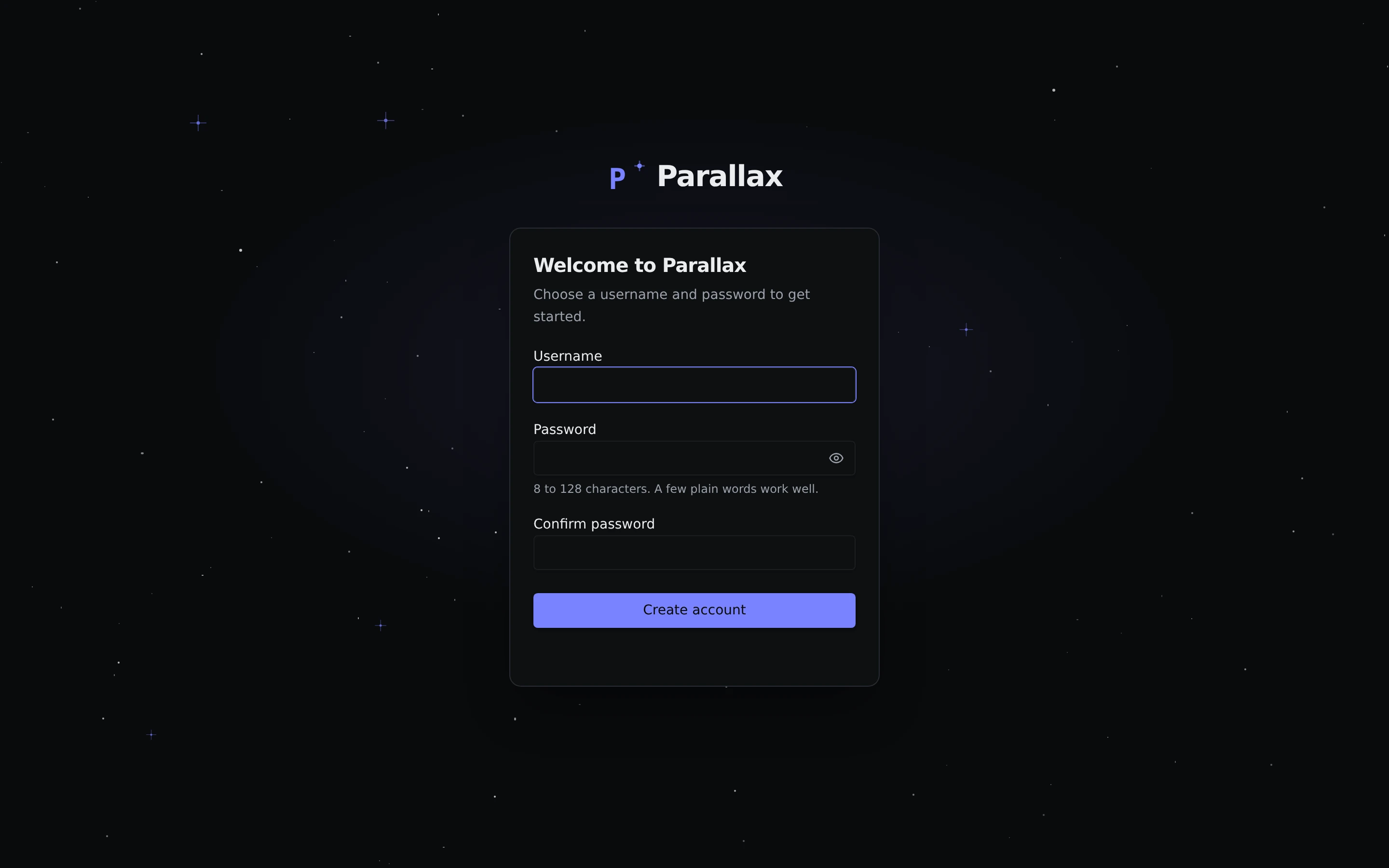
Whoever gets there first makes the account
There is no setup code. The first person to open the page creates the account, so open it yourself right after starting Parallax, before you share the address with anyone. The same goes for an existing install that you update to this version: the next visit shows this page.
Your password only has to be 8 to 128 characters long. There are no rules about capitals, numbers or symbols. Four plain words in a row are easier to remember and harder to guess than a short, tricky one. A password manager will offer to save it.
Signing in
After that, every browser that opens Parallax sees the sign-in page first.
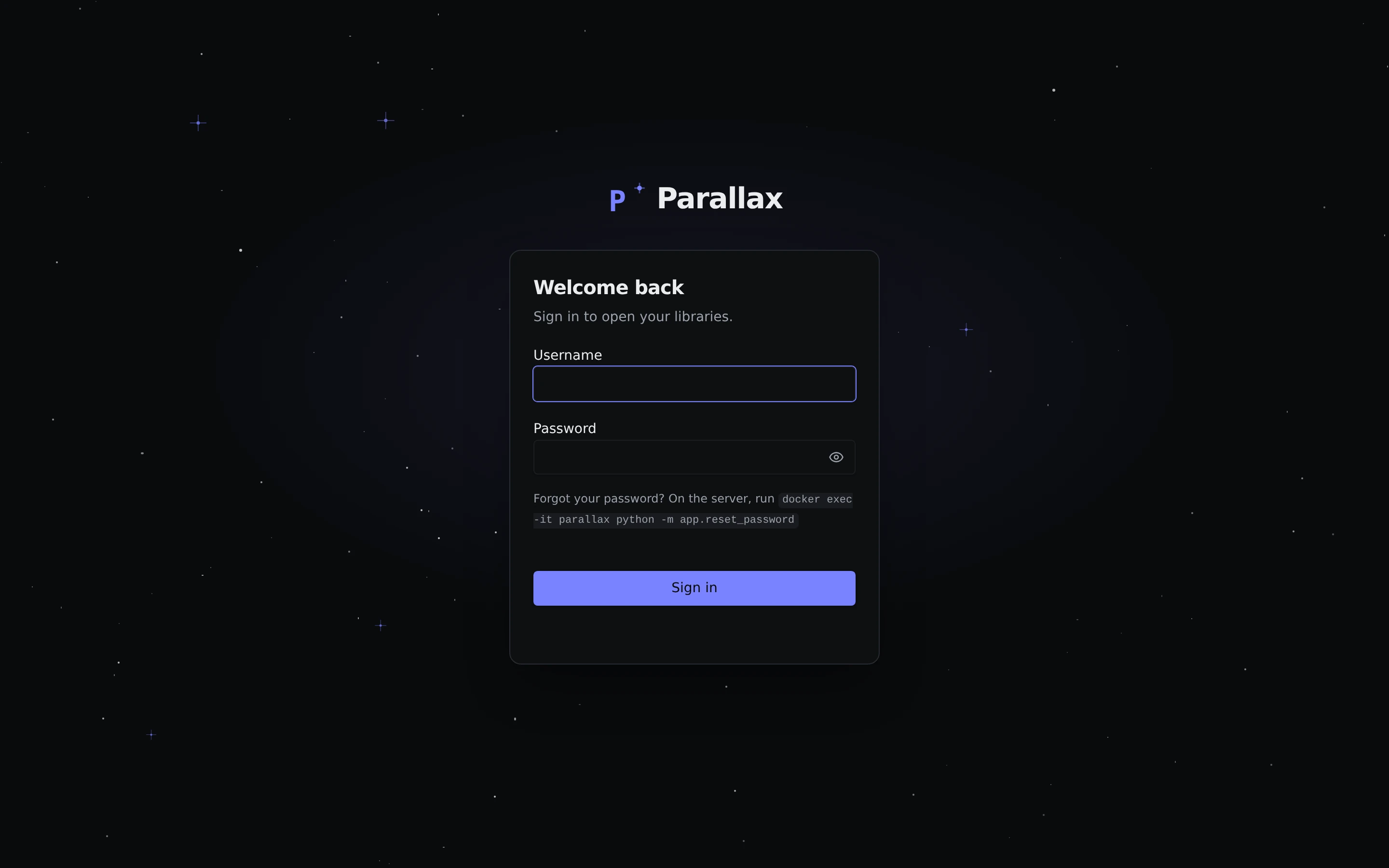
The stars drifting down behind the sign-in card are just decoration, and they do not react to your mouse. If you would rather have a still page, press Pause animation at the bottom right. Parallax remembers it, and the animation stays off automatically when your device is set to reduce motion.
You stay signed in for 30 days, and each visit pushes that out again, so a browser you use every week never asks twice. There is no "remember me" box, because that is how it always works.
You can get the password wrong a few times without any penalty. After ten wrong tries in a row, Parallax makes you wait a moment before the next one. The wait grows with each further wrong guess, up to one minute, and the page tells you how long. A correct password during the wait is refused too. The Current password box in Settings counts the same way, so a stolen browser session cannot be used to guess it. The count lives in memory and is shared by everyone, so if someone keeps guessing and you are stuck waiting, restart the container and the wait is gone.
Changing your username or password
Choose Account settings from the person icon in the top bar. It opens Settings → General at the Account card.
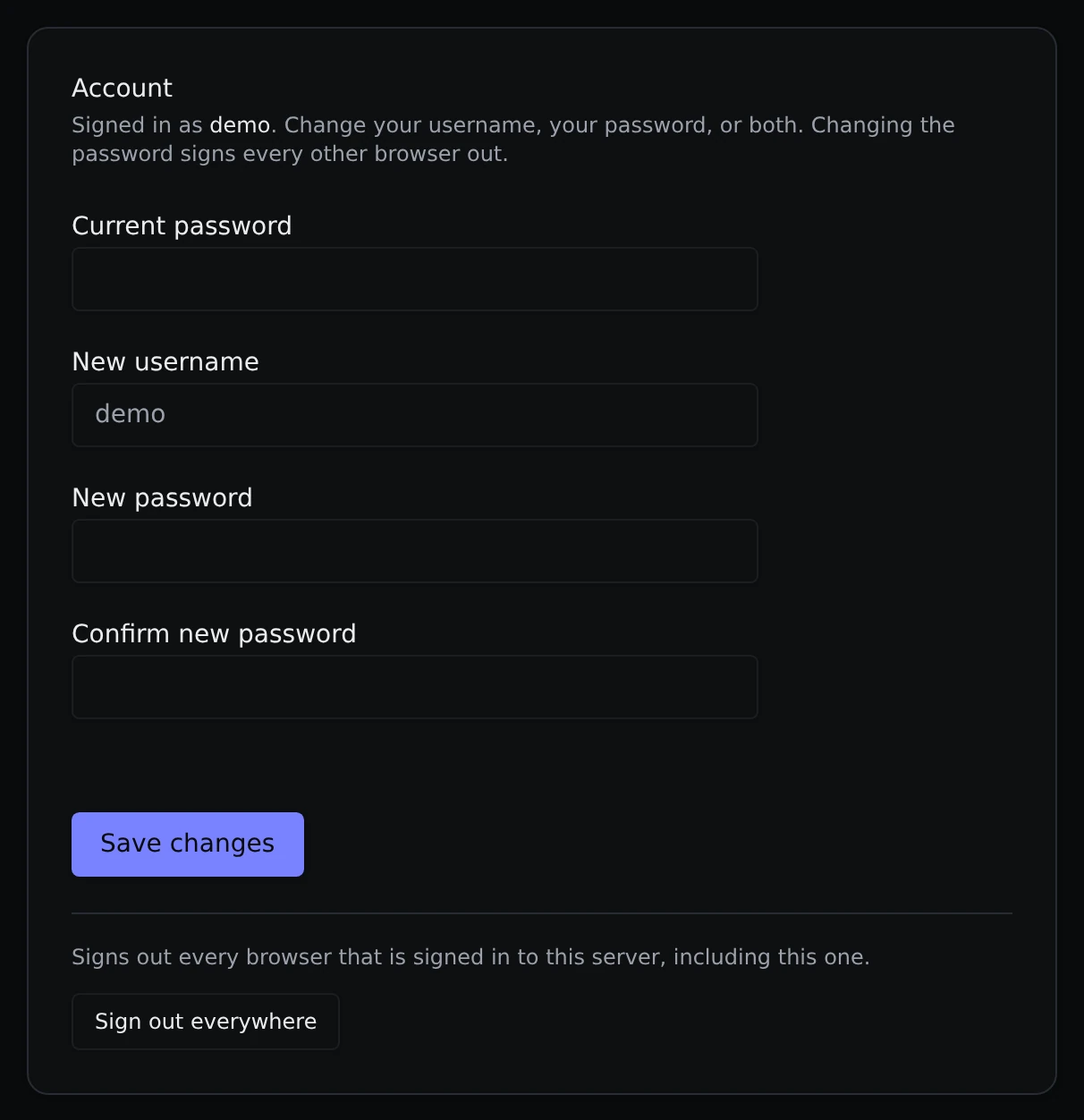
- Current password comes first and is always needed. This stops someone who finds your browser open from taking over the account.
- Then type a New username, a New password (twice), or both. Leave a box empty to keep what you have.
- Save changes applies it. Changing the password signs every other browser out. This browser stays signed in.
Sign out everywhere at the bottom of the card ends every session, including this one.
Signing out
Open the person icon in the top bar and choose Sign out. This only signs out the browser you are using.
If you are ever signed out while you are using Parallax, for example because you pressed Sign out everywhere on another device, the page switches to the sign-in page by itself. Sign in again and carry on.
If you forget your password
There is no email reset, because Parallax never sends email. Instead, anyone who can run commands on the machine where Parallax lives can set a new password:
docker exec -it parallax python -m app.reset_passwordIt asks for the new password twice (nothing shows as you type), saves it and signs every browser out. If your container has a different name, use that instead of parallax. Then sign in with your username and the new password. If you have also forgotten the username, it is shown in Settings → General → Account in any browser that is still signed in.
Using the API from a script
There are no API keys. A script signs in the same way the browser does and keeps the cookie. See the API reference for an example.
Turning sign-in off
If Parallax runs where only you can reach it, for example behind a VPN or another login, you can turn the sign-in off by setting PARALLAX_AUTH=off in your compose file. See the configuration reference. Everyone who can reach the page can then use it and delete files, and Parallax prints a warning to its log every time it starts. The Account card and the person icon are hidden while it is off.
What stays open
Only the sign-in page itself and the health check, /api/health, which an uptime monitor can use. Everything else needs you to be signed in: the pages, the live job updates, the thumbnails, video and audio playback, downloads, and the API reference that the app serves.
Advanced
- Your password is stored only as a salted scrypt hash. The session cookie is
parallax_session, a random token that is stored hashed, so a copy of the database cannot be used to sign in. - The cookie is
HttpOnlyandSameSite=Lax. It is markedSecurewhen you reach Parallax over HTTPS, including through a reverse proxy that sendsX-Forwarded-Proto: https. - A request that changes something is refused when it looks like it came from another web page: your browser labels it
Sec-Fetch-Site: cross-siteorsame-site, or it names another page in itsOriginheader without being JSON (browsers do not send the label over plainhttp://to a network address, so the second rule covers that case). Parallax's own pages always send JSON. Neither rule looks at theHostheader, so it works the same behind any reverse proxy. Turning the sign-in off withPARALLAX_AUTH=offalso turns these checks off. - Parallax allows no cross-origin requests at all.