Jobs
Watch what Parallax is working on, read its logs, and cancel things.
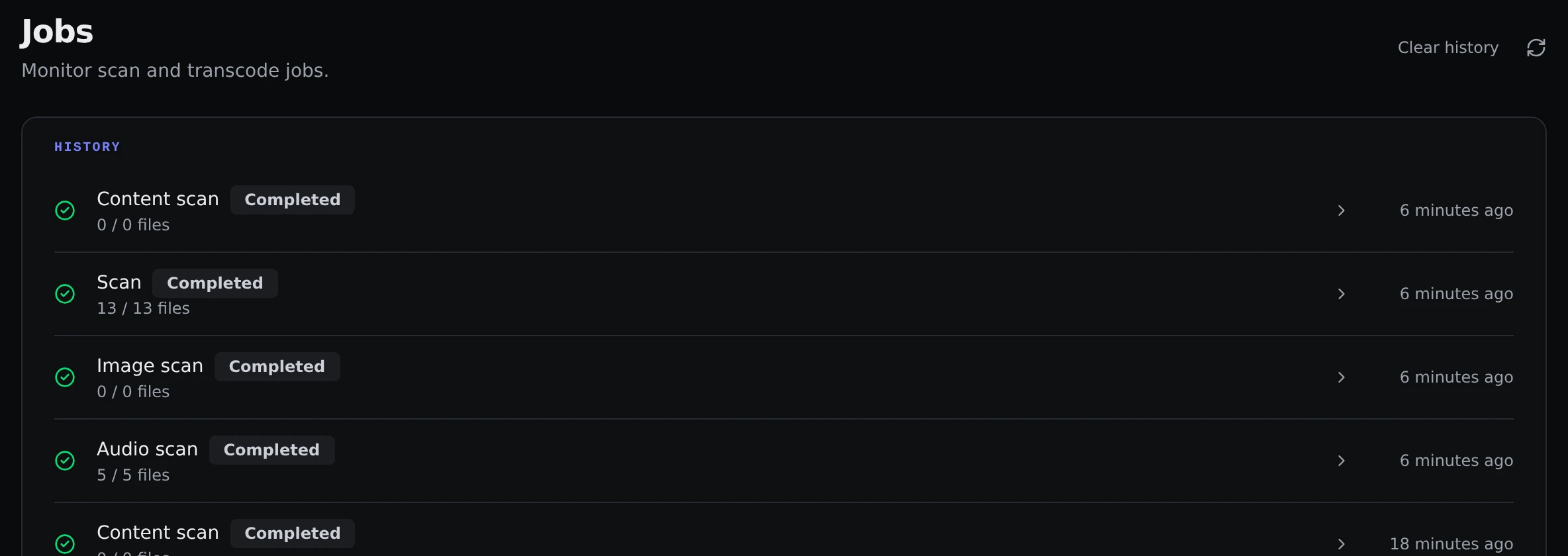
Anything that takes a while in Parallax runs as a job in the background, so the app stays usable while it works. Scans, compressing, duplicate searches, subtitle downloads, upscaling and more all show up here.
Where to look
There are two places.
- The Jobs page, from the pulse icon in the top bar or the command palette, lists everything. Running and waiting jobs are at the top and finished ones are in History.
- The pulse icon in the top bar opens a small menu with the same list, so you can check on things without leaving the page you are on. A badge on it counts active jobs.
Parallax also pops up a message when a job finishes, and the number of active jobs appears in the browser tab's title so you can see it from another tab.
What you can do with a job
Each job shows its type, how far along it is, the file it is working on and how long ago it finished. Click a job to open its log, which is the best place to look when something goes wrong. A job that failed opens its log by itself.
You can cancel a job that is running or waiting. A job that is waiting for its turn is simply removed from the queue. Clear history removes finished jobs from the list.
How many run at once
By default Parallax runs one job at a time, and the rest wait their turn in the order they were started. To run more together, raise Concurrent jobs in Settings → General.
That setting is about whole jobs. How many files a single Compress or Toolbox job handles at once is a separate setting in Settings → Transcoder. The Hardware acceleration page explains the difference.
After a restart
If Parallax is stopped while a job is running, that job is marked as failed the next time it starts, so nothing looks like it is still running when it is not.