Your first scan
Add a folder to Parallax and let it look through your files.
Parallax works with folders you give it, which it calls libraries. Adding one takes a minute.
Add a library
- Open Videos in the top bar, then Libraries.
- Click Add Library.
- Pick the folder with your videos.
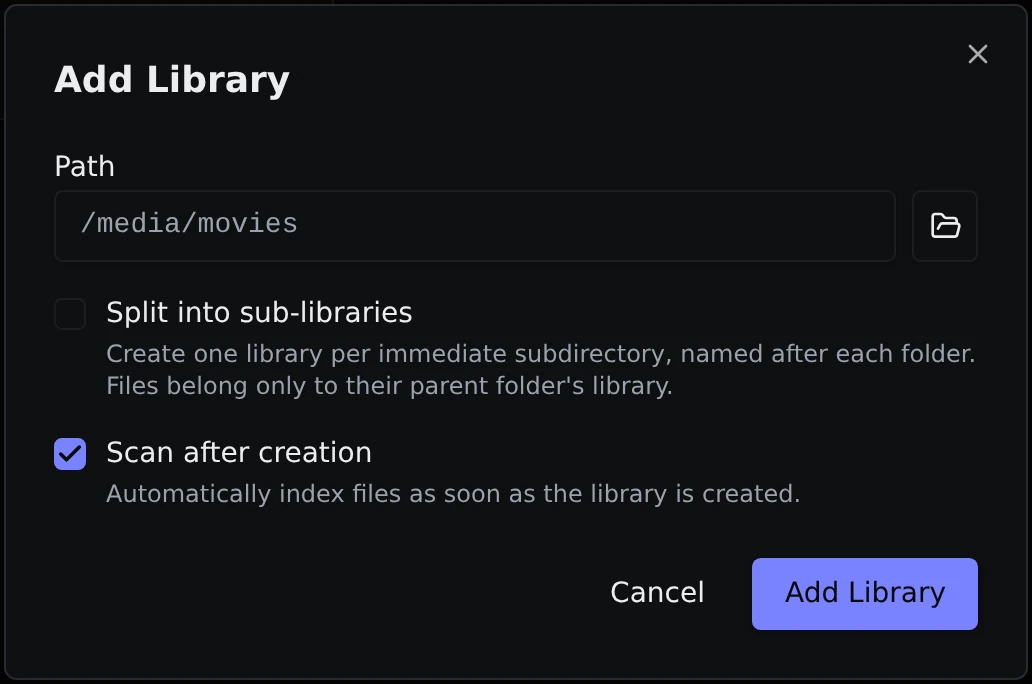
Use the folder button next to the path field to browse. You will only see folders you shared with the container in your Docker setup, which is why the list starts at /media.
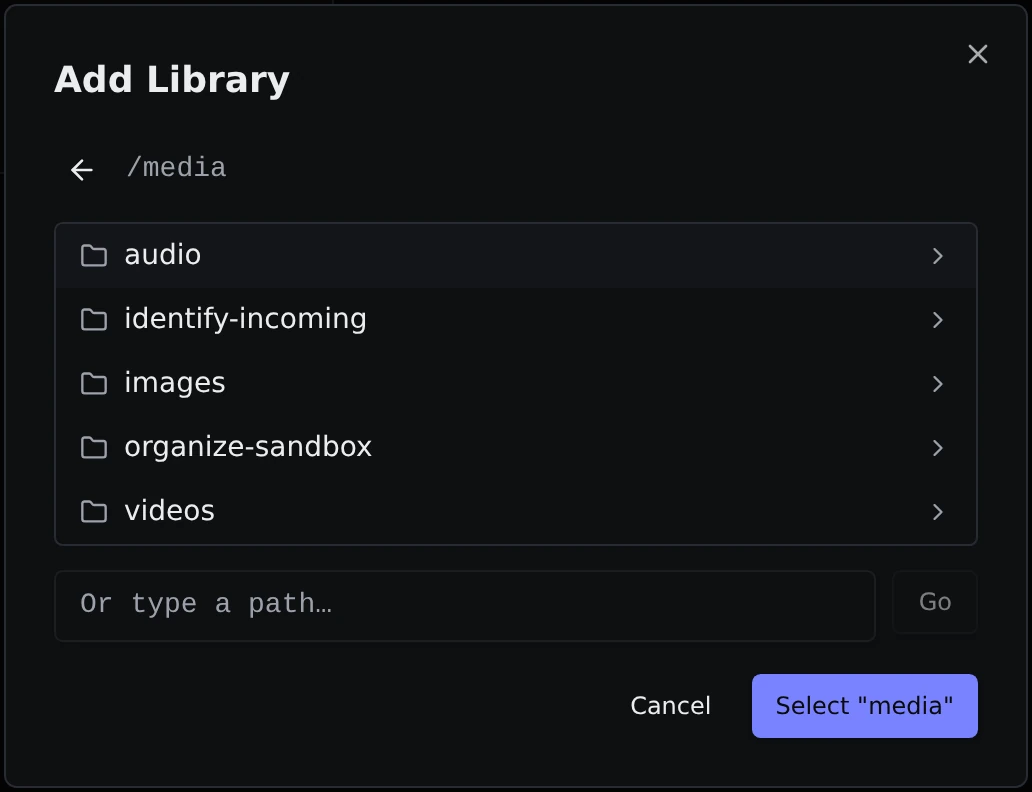
You can also type a path if you already know it.
Two options sit under the path:
- Split into sub-libraries makes one library for each folder inside the one you picked, named after that folder. This is handy if you keep films, shows and home videos in separate folders and want to see them separately.
- Scan after creation starts looking through the files right away. Leave it ticked unless you have a reason not to.
Parallax names the library after the folder, so there is nothing to type for that.
Wait for the scan
The scan reads each file to find out how long it is, how big, what format and so on. It does not change your files. How long it takes depends on how many files you have, but most collections finish in a few minutes. You can watch it on the Jobs page.
Once it is done, your videos show up on Files.
If a library says it has not been scanned yet, use the refresh button on its row to start a scan.
Images and audio
Images and audio work the same way. Use Images → Libraries for photos and pictures, and Audio → Libraries for music and other sound files. The Audio section stays tucked away until you add your first audio library.
After the first scan
You do not need to scan again by hand. Parallax keeps an eye on your folders, so files you add, change or delete show up on their own after a few seconds.
From here you can:
- Browse everything on Files and Images.
- Look for duplicates, or clear out files you no longer want.
- Make videos and audio smaller with Compress.
- Tidy up names with Identify. Matching TV shows and movies uses a free TMDB key, which you add under Settings → Keys & Accounts.
If you want to know what is going on behind the scenes, read How Parallax works.