Home and statistics
See how much space Parallax has saved you, and what it is doing right now.
Home is the first page you see. It adds up what Parallax has done for your storage, shows what is running at the moment, and gives you shortcuts to get started.
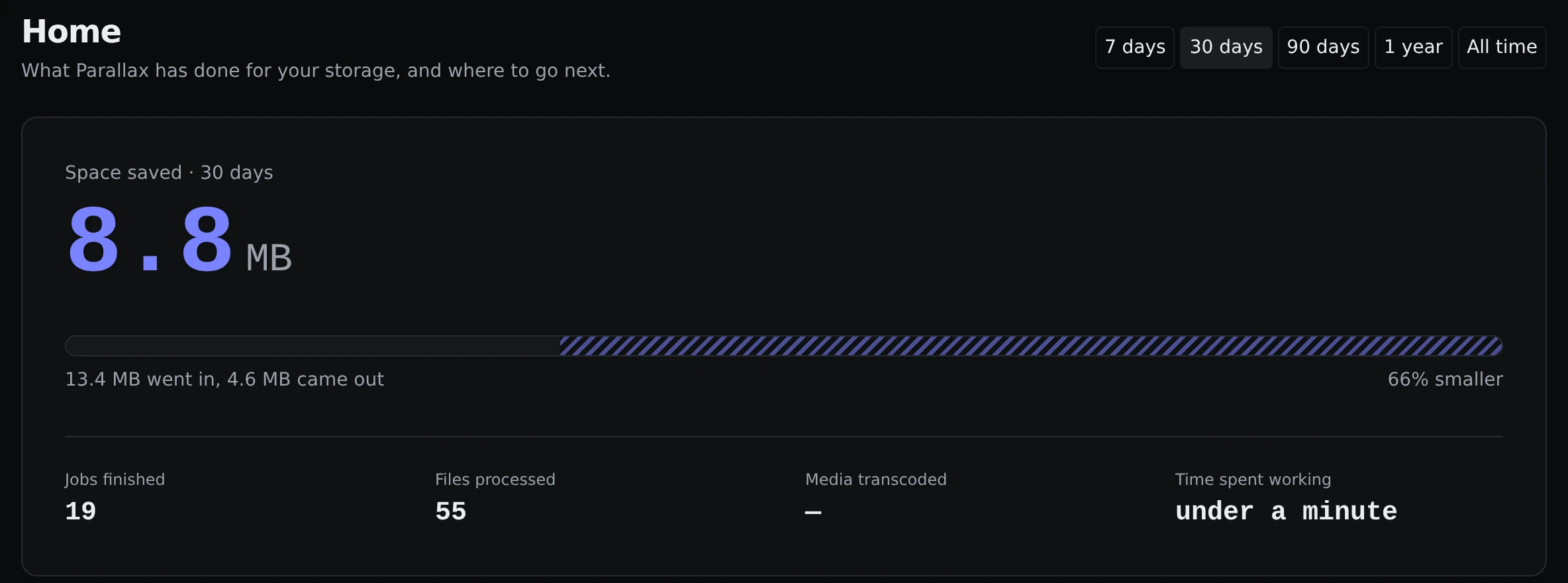
Space saved
The big number at the top is how much space you have saved over the period you pick. The buttons in the corner switch between 7 days, 30 days, 90 days, 1 year and All time. Parallax remembers your choice.
Under it, a bar compares what went in with what came out, for example "13.4 MB went in, 4.6 MB came out", and how much smaller that makes things. Four facts sit below that: jobs finished, files processed, how much media was converted, and how long Parallax spent working.
Space counts as saved when you:
- Compress or fix files and the result is smaller.
- Delete files with Cleanup, Duplicates or Organize, or quarantine images. The space those files used counts as saved.
If you put an original back from the Originals page, that saving is taken off again.
The rest of the page
- Space saved over time is a curve of your savings. It appears once there is activity on at least two different days.
- Work by operation shows what Parallax has been busy with, such as scans, compressing and duplicate searches, with how much space each one freed.
- Start something has shortcuts to common jobs, like shrinking videos, finding duplicates or getting subtitles.
- Right now shows jobs that are running, and the libraries you have.
- Activity, last 26 weeks is a calendar grid with one square per day. Hover a square to see the date and how many jobs finished that day.
On a brand new install there is nothing to show, so Home shows a short explanation instead of empty charts.
What is kept, and what is not
The numbers come from a small separate record that only stores totals. It never keeps file names, folder paths or library names. Because of that:
- Removing a library does not change your statistics.
- Using Purge all library data does not change them either.
- Nothing about your files can leak out of them.
To start again from zero, open Settings → General and use Clear statistics in the Statistics card. This cannot be undone. It does not touch your libraries, files or other settings.