Toolbox
Quick fixes for problem files, like trimming the ends, fixing one-sided sound or turning a sideways clip upright.
Toolbox is for files that are almost right. A clip with a few seconds of black at the start, sound that only comes out of one speaker, a phone video that is sideways. You pick the fixes, pick the files and Parallax applies them in one go.
It is on Videos → Toolbox and Audio → Toolbox.
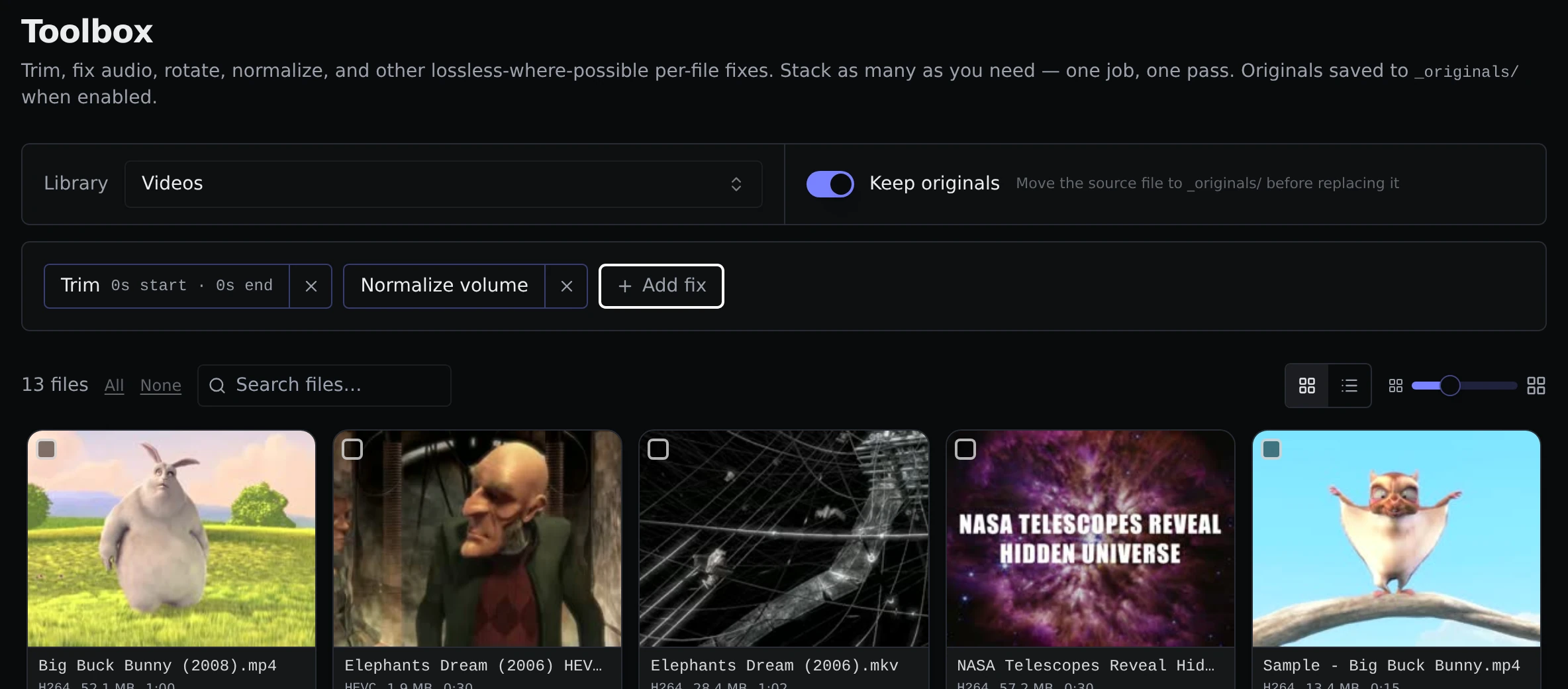
Using it
- Open Toolbox and pick a library.
- Click Add fix and choose what you want done. Each fix becomes a chip. Click a chip to change its settings, or the × to remove it.
- Select the files.
- Click Fix in the bar that appears at the bottom of the page once something is selected.
You can stack as many fixes as you like. They are all applied in a single pass, so each file is only processed once.
The fixes
Trim cuts seconds off the start, the end, or both. When it can, Parallax does this without re-encoding, which is very fast and loses no quality. If the cut point is not close enough to a clean spot in the video, it re-encodes just enough to get an exact cut.
Audio channel fixes sound that only plays on one side. Choose left or right to copy that side to both speakers, or auto to let Parallax work out which side is louder and copy that one.
Rotate turns the picture 90 degrees clockwise, 90 degrees counterclockwise, or 180 degrees. This changes the actual picture rather than a note in the file, so the video is re-encoded at high quality.
Normalize volume evens out the loudness, so a video that is much quieter or louder than the rest of your library ends up at a standard level. There is nothing to set.
Faststart reorganizes an MP4, M4V or MOV file so it starts playing quickly and lets you skip around without waiting. It helps with files that feel slow to open in a browser. There is nothing to set.
A/V sync offset fixes sound that is out of step with the picture. Enter a number of milliseconds. A positive number delays the sound, and a negative number plays it earlier.
Keeping your originals
Keep originals is a switch in the strip at the top of the page, next to the library picker, and it is on by default. Each fixed file replaces the old one, and the old one is moved to an _originals folder next to it so you can go back. See Originals. Tags and chapters are kept.
While it runs
The job runs in the background, with a banner showing progress. You can cancel it, and it also appears on the Jobs page. If you have given Docker a graphics card, video fixes that need re-encoding use it. See Hardware acceleration.
How many files a job handles at once is set by Concurrent video transcodes (per GPU) and Concurrent audio transcodes under Settings → Transcoder.