Files
Browse your videos, photos and music, search and sort them, and play them in the browser.
This is where you look through what you have. Each kind of media has its own page, but they behave in much the same way: pick what to look at, search and sort it, then open or play anything without leaving the page.
- Videos → Files for videos.
- Images → Images for photos and pictures.
- Audio → Files for music and other sound.
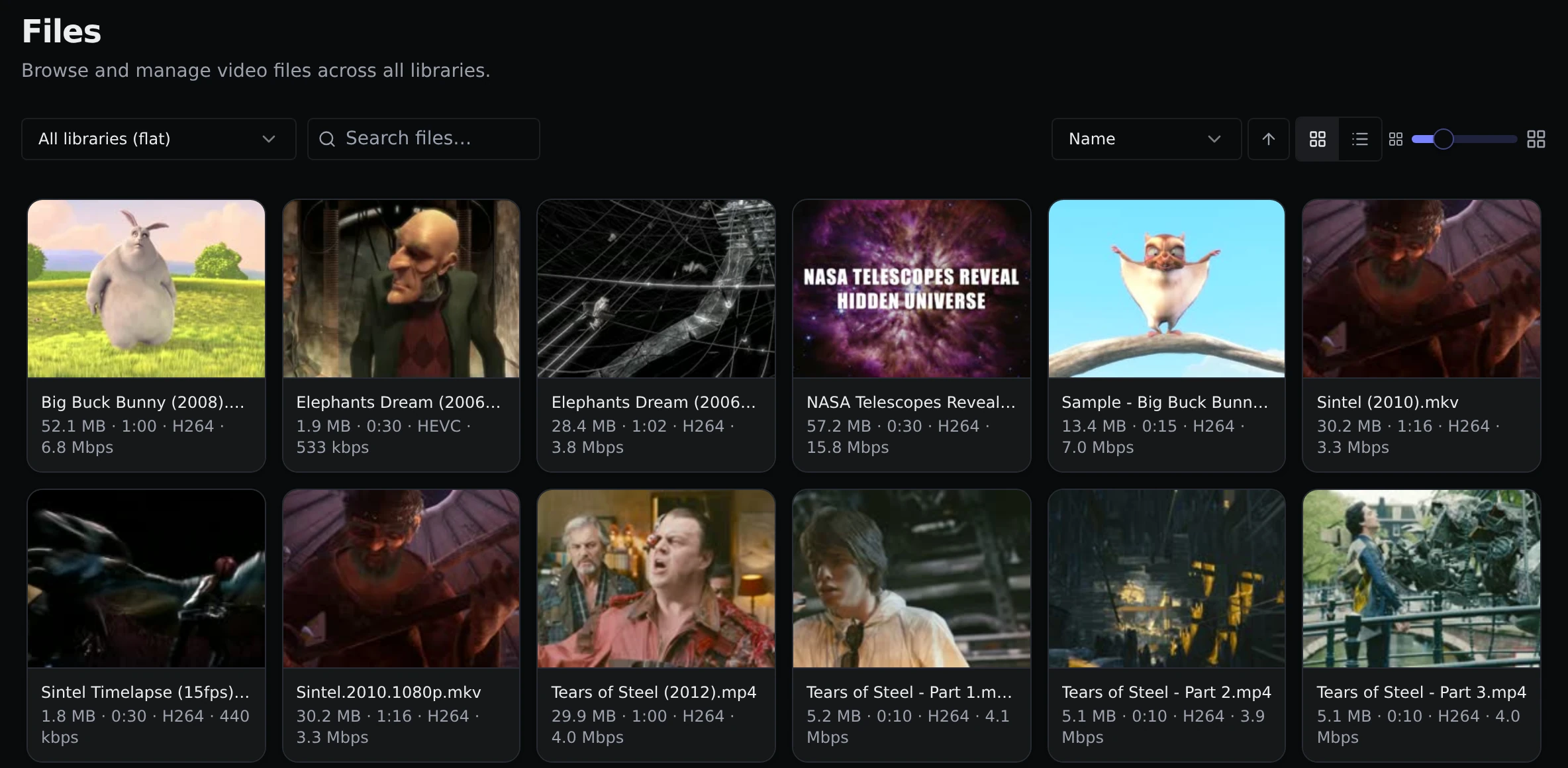
Each card shows the file name, its size, how long it is, its video format and its bitrate (how much data each second of video takes up, which is a rough guide to quality). A video that does not have a thumbnail yet shows a placeholder until it does.
The picker at the top left decides which videos you see:
- All libraries (flat) lists every video from every library in one long view.
- Picking a single library lets you browse it folder by folder, like a file manager. Folders appear as cards at the top, and a trail of links above them takes you back up.
You can sort by name, extension, size, duration, bitrate or the date a file was added, and switch between a grid and a list. In the grid, a slider sets how big the cards are. That size is remembered and is shared by every page that has a grid.
The list view adds columns for the date the video was recorded or made, and the date the file was added.
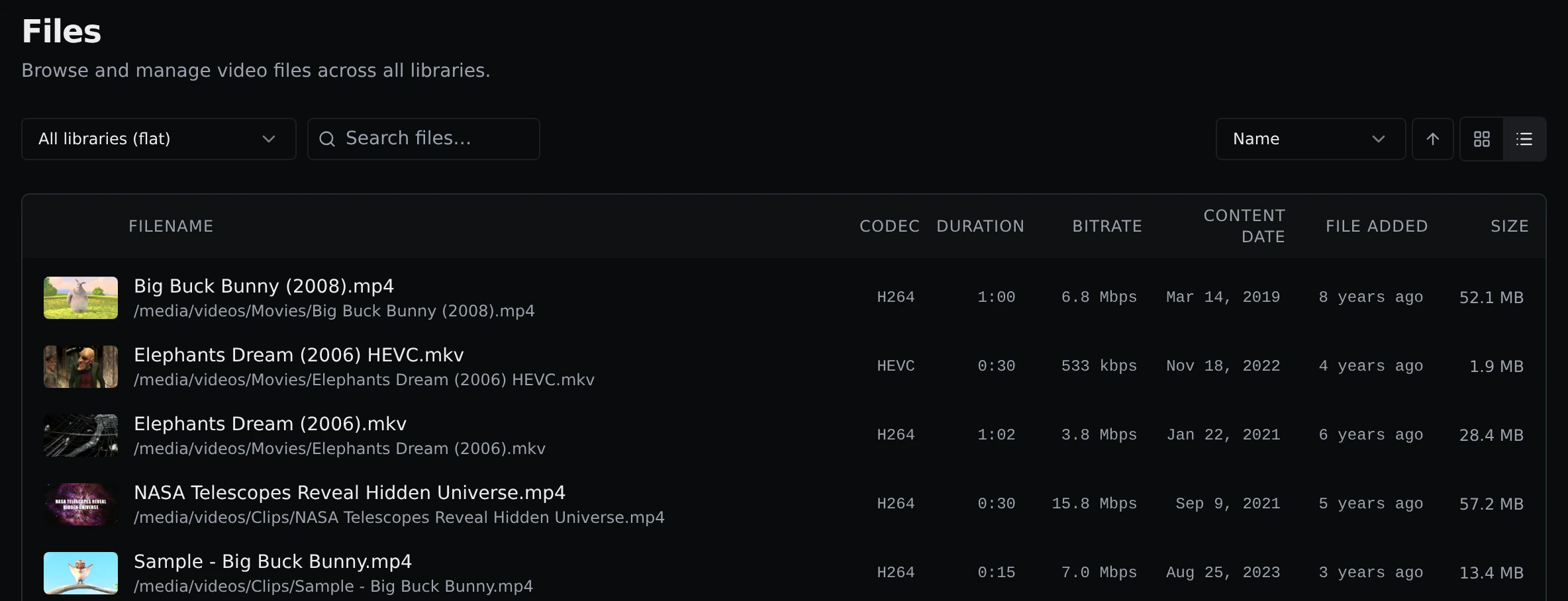
The two dates are not the same thing. Content date comes from the information stored inside the file, and falls back to the file's date on disk when there is none. File added is the file's date on disk. A video downloaded today can have a content date from years ago.
Click a video to play it. If there are subtitle files next to it, a captions button appears and you can choose the language.
Playing things
Videos and audio play in a window over the page, and Parallax remembers your volume. Some videos have sound in a format that browsers cannot play. Parallax converts the sound as you watch, so the video starts after a couple of seconds and then plays normally. Your file is not changed.
Right-click a video, or use its small menu button, to get Play and Copy path. Copy path puts the file's location on your clipboard, which is handy for pasting into another program.
Staying up to date
The pages refresh by themselves when Parallax notices changes in your folders, so you do not need to reload after adding or removing files.
These pages are for looking. To delete files, see Cleanup and Duplicates.