Hardware acceleration
Use a graphics card to speed up compression, and tune how many files run at once.
Parallax runs fine on a plain processor, but compressing video is much faster on a graphics card. This page covers how to hand one to the container and how Parallax decides what to use. You do not need any of it to get started.
What uses the graphics card
| Feature | Uses a graphics card? |
|---|---|
| Video Compress and Toolbox | Yes, for the encoding. Decoding is hardware assisted too. |
| Splice (re-encode mode) | Yes |
| Image Upscale | Yes, through Vulkan, if a discrete GPU is available |
| Audio Compress and Toolbox | No, always the processor |
| Content detection on images | No, always the processor |
NVIDIA
You need the NVIDIA driver and the NVIDIA Container Toolkit on the host. On Debian or Ubuntu:
- Install kernel headers and build tools so the driver can build for your kernel.
- Install a current driver from NVIDIA's guide. Distro packages often lag behind. RTX 50 series cards need driver 570 or newer.
- Reboot, then check that
nvidia-smiworks. - Install the NVIDIA Container Toolkit.
- Run
nvidia-ctk runtime configure --runtime=docker, thensystemctl restart docker.
Then add this to the Parallax service in your compose file:
deploy:
  resources:
    reservations:
      devices:
        - driver: nvidia
          count: all
          capabilities: [gpu, video, graphics, utility]
The video capability gives Parallax NVENC and NVDEC. graphics and utility are what let Image Upscale use the card through Vulkan. Leave them out and upscaling still works on the processor, only more slowly.
Some hosts, such as TrueNAS SCALE, install the NVIDIA driver without the small file Vulkan uses to find it (nvidia_icd.json). Parallax ships its own copy, so upscaling should still find the card. If Image Upscale logs No usable Vulkan GPU for upscaling even though Compress uses the card, check that the container has the graphics capability and that the host driver provides libGLX_nvidia.so.0.
With docker run, use --gpus all and add -e NVIDIA_DRIVER_CAPABILITIES=all.
On Windows with Docker Desktop and WSL 2, a recent NVIDIA driver (521 or newer) is enough. You do not install the toolkit separately.
Intel and AMD
Pass the render devices through with VA-API:
devices:
  - /dev/dri:/dev/dri
group_add:
  - video
This is not available under Docker Desktop on Windows, so Windows users with AMD or Intel cards run on the processor.
How Parallax picks an encoder
When it starts, Parallax asks ffmpeg which encoders exist and takes the first available one for each codec, in this order: NVENC, Intel QSV, AMD AMF, VA-API, then the software encoder.
It finds your cards separately. NVIDIA cards come from nvidia-smi. Intel and AMD cards come from the readable /dev/dri/renderD* devices. The render node that belongs to an NVIDIA card is ignored so the same card is not counted twice.
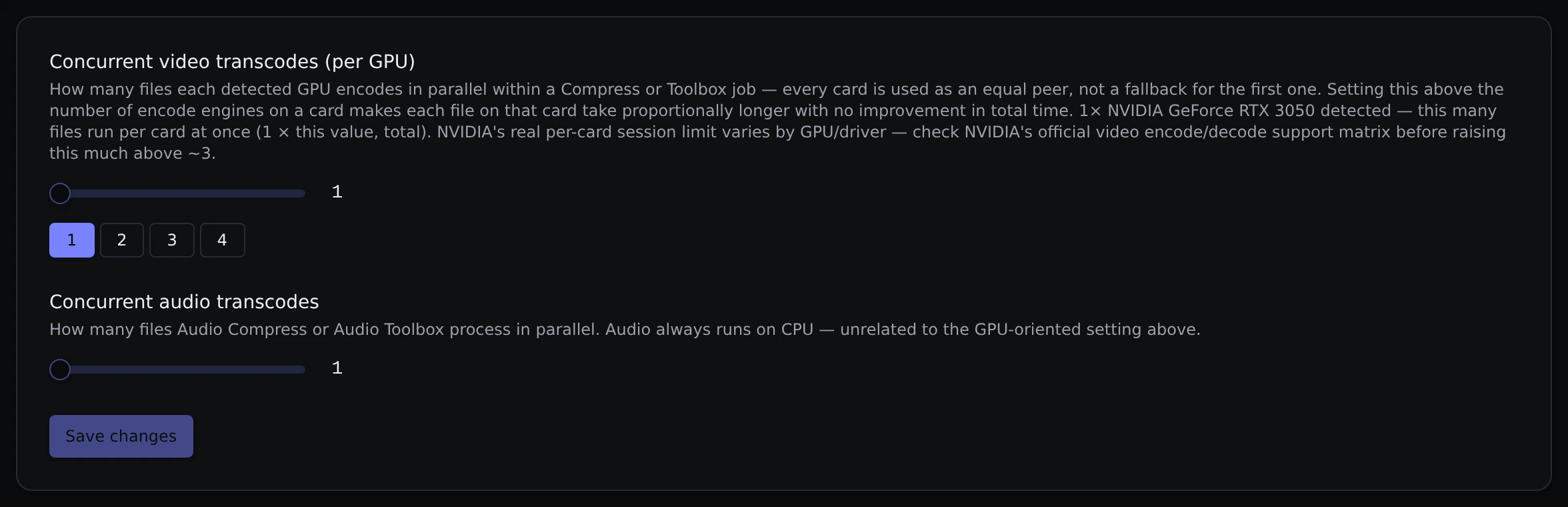
To see what it found, open Settings → Transcoder. The text under the first slider names your cards, or says that no hardware encoder was detected.
Several graphics cards
If more than one card is detected, Compress and Toolbox spread files across all of them. Each file goes to whichever card has the fewest files running, so no card is treated as a spare.
The slider Concurrent video transcodes (per GPU) sets how many files each card works on at once. With two cards and a value of 2, up to four files run together. Raising it past what the card's encoders can handle makes each file slower without finishing the batch any sooner. NVIDIA limits how many encodes a consumer card can run at once, and the limit depends on the card and driver, so check NVIDIA's support matrix before going much above 3.
Audio has its own slider, Concurrent audio transcodes, because it always runs on the processor.
If the card fails to start
If a card cannot be initialised for a file, Parallax logs the failure, stops using that card for the rest of the job, and tries the file again on another card. Splice shows a Retry with CPU button when a hardware encode fails. The other tools do not have a retry button yet, so if all your cards fail they report the error.
Concurrent jobs
This is a separate setting from the one above. Concurrent jobs in Settings → General is how many jobs of any kind run side by side (scans, compressions, duplicate searches). It defaults to 1.
Image Upscale and Vulkan
Upscale picks a discrete GPU through Vulkan on its own. Integrated graphics are skipped, because they measured slower than the processor. Turn on Use CPU only in the settings sheet on the Upscale page to force the processor.
Staging on a fast disk
If your media lives on slow storage but you have an SSD, mount a folder from it at /app/scratch:
volumes:
  - ./data:/app/data
  - /mnt/media:/media
  - /mnt/ssd/scratch:/app/scratch
Compress and Toolbox then write their work in progress there and move the finished file back, which turns lots of slow overlapping reads and writes into one clean read and one clean write. There is no setting. If the folder is mounted it is used, and if not, nothing changes.
Other settings
LOG_LEVELsets how chatty the container logs are. It defaults toINFO.- The port inside the container is fixed at 7899. To change the port you open, change the left side of the
portsline.