Splice (Video)
Join several videos into one, in the order you choose.
Splice joins videos together. It is useful when a film came in several parts, or you have a set of clips that belong as one video.
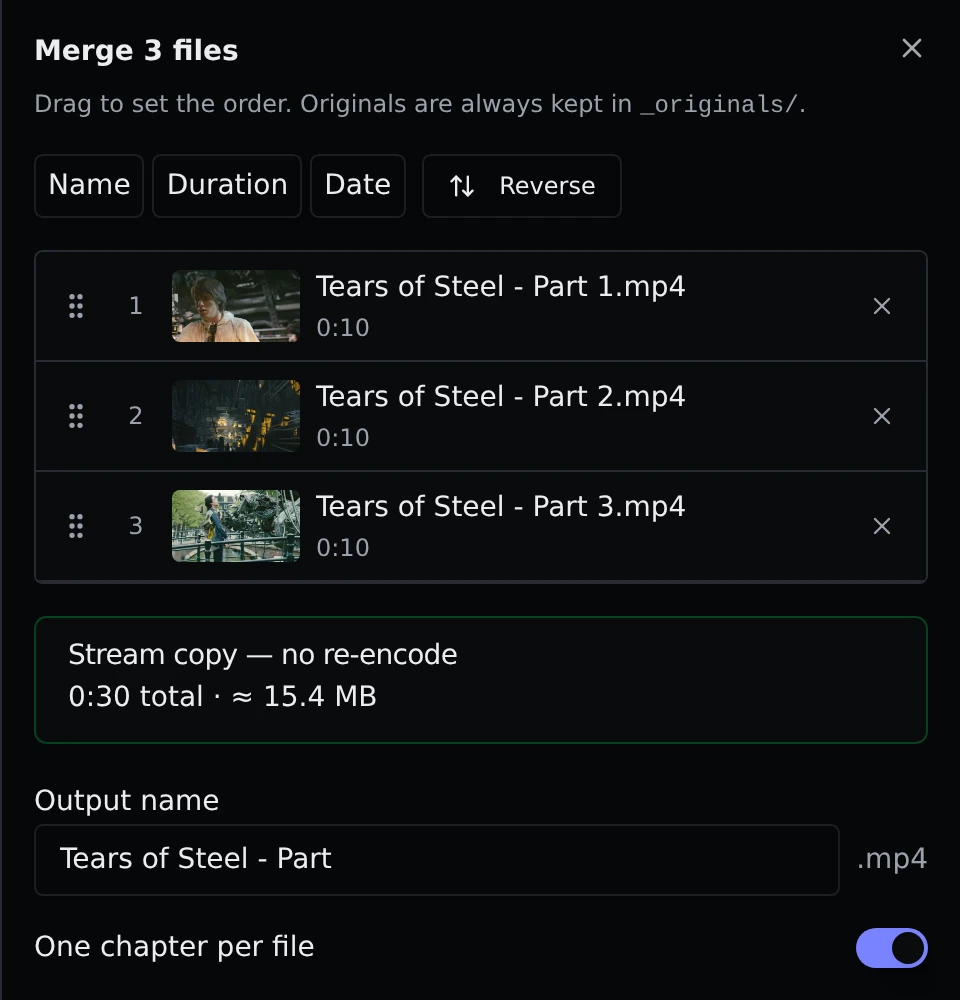
Merging videos
- Open Videos → Splice and pick a library. Everything you merge has to come from the same library.
- Select two or more videos. To narrow the list down, use Add filter above it: it works just like the filters in Cleanup (length, frame rate, dates, size, resolution, orientation and name). Searching for a common part of the name, like "Part", is a quick way to find them. Videos you have already ticked stay ticked when a filter hides them.
- Click Merge in the bar that appears at the bottom of the page. A drawer opens on the right.
- Drag the videos into the order you want them to play. The Name, Duration and Date buttons sort the list for you, and Reverse flips it.
- Check the output name, then click the merge button at the bottom.
The new video is saved in the same folder as the first one in your list.
Two ways of joining
Parallax looks at your videos and tells you which way it will join them.
Stream copy is used when all the videos match each other (same format, size, frame rate and sound). The picture and sound are joined as they are. It is very fast and loses no quality at all. The drawer shows the total length and the size it will come to.
Re-encode needed appears when the videos differ, for example one is 1080p and another is 720p. Parallax then has to make a new video from all of them, and the drawer shows a few extra choices:
- Codec, Quality and Speed work like they do in Compress.
- One video is marked with a star. The result takes that video's size and frame rate, and the others are scaled to fit with black bars where needed. Click a different video's star to change it.
- A video with no sound gets silence added so everything lines up.
- Encode on CPU turns off the graphics card. It is there in case your graphics card has trouble with the job.
Other options
Output name is the name of the new file. The ending (like .mp4) is chosen for you. If a file with that name already exists in the folder, the drawer tells you and waits for you to pick another.
One chapter per file puts a chapter marker where each original video starts, so you can jump between them in a player that supports chapters. It is switched on by default.
If the folder is short on space, the drawer warns you before you start.
Your originals are safe
Splice always keeps your originals. They are only moved into the _originals folder after the new video has been made and checked, and a merge that fails or is cancelled leaves everything exactly as it was. You can find the originals on the Originals page.
If a graphics card fails during a merge, Parallax says so, and the banner offers Retry with CPU so you do not have to start over.
Coming later
A second tab, Snip, is planned. It will cut parts out of a video as separate clips.