Upscale (Image)
Make a bigger or sharper copy of your pictures.
Upscale makes a larger version of an image, or a cleaner copy of one that is soft or full of compression noise. It is found under Images → Upscale.
By default your original is not touched. The new picture is saved next to it with the size added to the name, like holiday_4x.jpg.
Using it
- Open Images → Upscale and pick a library.
- Select the pictures you want.
- Click the bar showing the current choice (it starts as Fast · 4×) to open the upscale settings, and choose a quality and a size.
- Click Upscale.
The bar at the bottom tells you how big the largest picture will become. Very large results (over 150 megapixels) are skipped, and Parallax lists any it skipped and why.
Settings
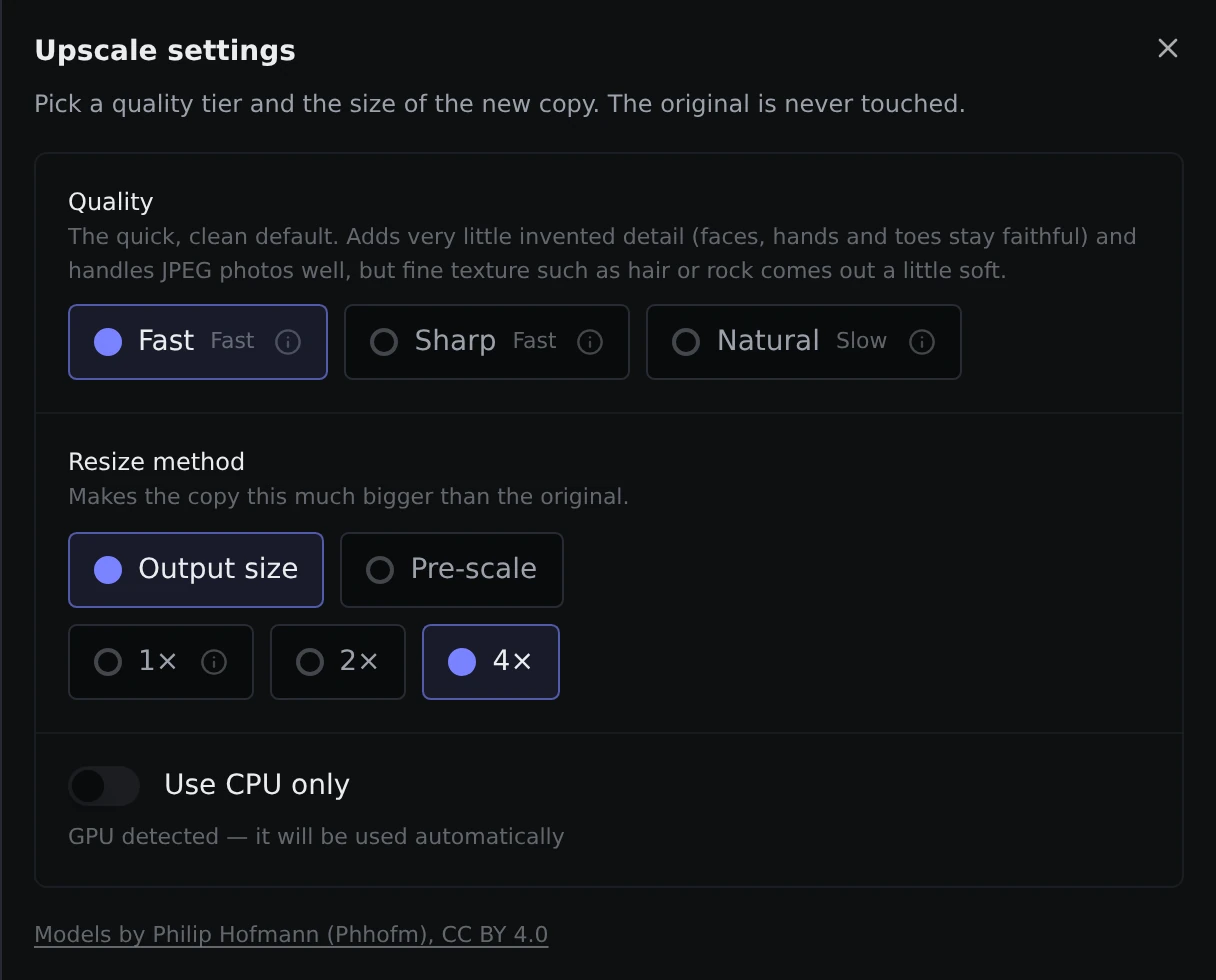
Quality has three choices. Hover the info icon next to each for a description.
- Fast is the default. It is quick and clean, adds very little invented detail so faces and hands stay faithful, and works well on JPEG photos. Fine texture like hair or rock can come out slightly soft.
- Sharp is just as quick but crisper, and good at cleaning up JPEG noise. It can add faint texture to fine detail.
- Natural is slower and gives more fine detail while still being careful not to make things up.
Resize method decides how big the new picture is.
- Output size makes the copy 2× or 4× bigger. The 1× option shrinks the result back to the original size, which mostly hides the improvement, so use Pre-scale for a same-size, sharper copy.
- Pre-scale first shrinks the image to a percentage you choose, then lets the model rebuild the detail. It is a good fit for big but blurry pictures, and it is faster. A percentage of 25 with a 4× model gives you a sharper picture at about the same size as the original.
Your originals
The Originals choice at the top of the page, next to the library picker, decides what happens to the original picture:
- Keep both saves the new copy next to the original, which is not changed. This is the default.
- Replace gives the new picture the original's place and moves the original to the quarantine, so you can restore it.
- Overwrite gives the new picture the original's place and deletes the original. Parallax asks you to confirm first.
Speed and graphics cards
If your machine has a separate graphics card that Docker can use, Parallax uses it automatically and upscaling is much faster. Without one it still works on the processor, only more slowly. Use CPU only, a switch at the bottom of the upscale settings, forces the processor. See Hardware acceleration for how to give Docker a card.
Only one upscale job runs at a time.
The models are by Philip Hofmann, released under the CC BY 4.0 licence, and are bundled with Parallax.