Duplicates
Find files you have more than once and free up the space.
Duplicates finds files that are really the same thing, even when they look different: a copy in another folder, or the same movie, photo or song saved in a different size or quality.
It lives in Videos → Duplicates, Images → Duplicates and Audio → Duplicates. They share the same idea, with different ways of deciding what counts as "the same".
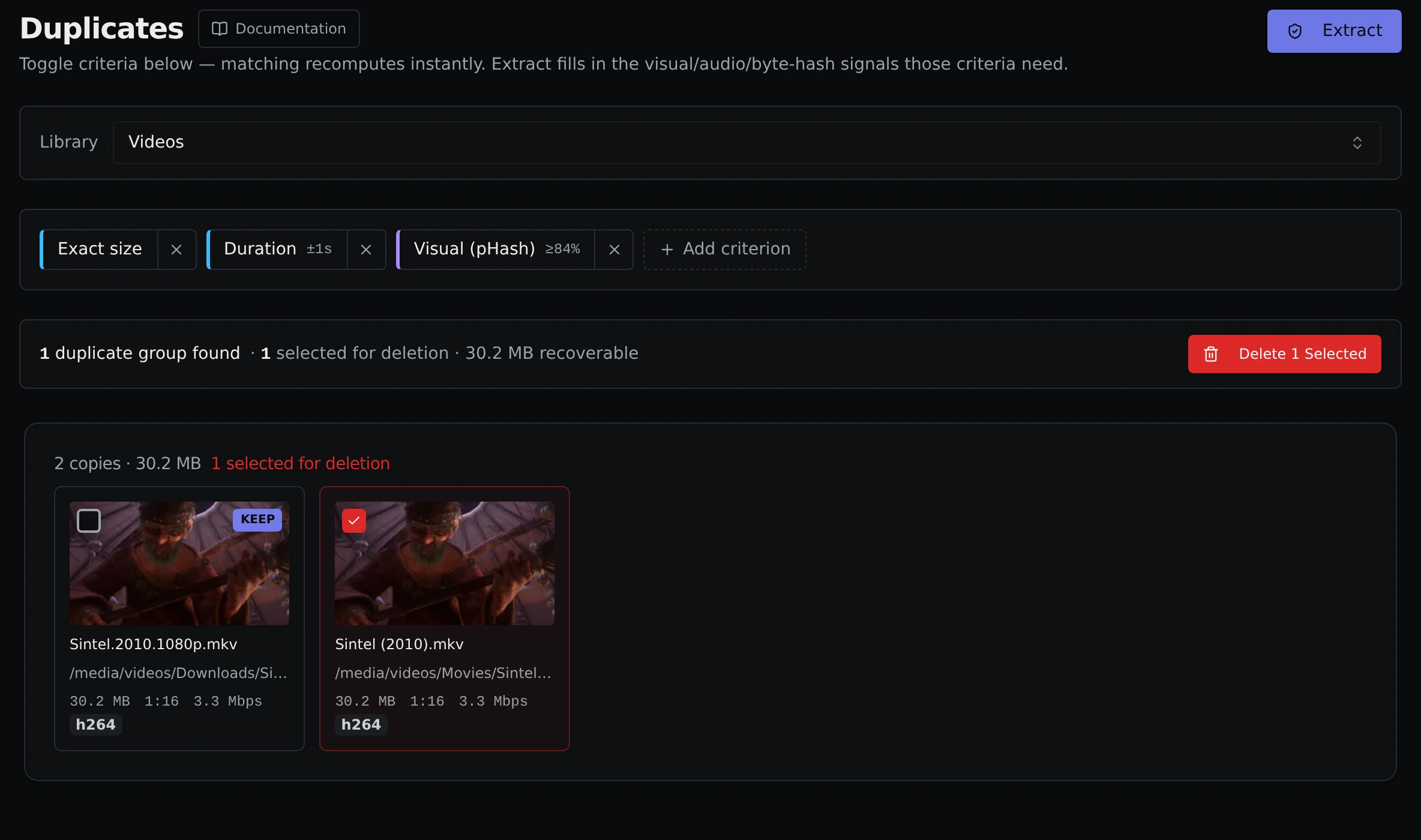
You pick a library and choose what counts as "the same". Each choice is a chip in a row, and a pair of videos is only matched when every chip agrees. Click a chip to adjust it, the × to remove it, or Add criterion to bring in another.
The ones that look at details Parallax already knows are instant:
- Exact size means the files are exactly the same size.
- Duration means they run for the same time, give or take a few seconds. Click the chip to set how many.
- Resolution and Orientation need the picture size and shape (landscape, portrait or square) to match.
- Content date looks for videos recorded within a window of days.
- Bitrate allows a percentage difference in how much data each second of video holds.
- Filename matches names that are similar, not just identical, with a similarity you set by clicking the chip.
Three more look inside the files, so they need a short preparation step first:
- Byte hash is a strict check that two files are exact copies.
- Visual compares how the picture looks, so it can spot the same video saved at a different size or quality. You set how similar it has to be, whether to look at just the first frame or several frames, and how many frames to check. More frames is more thorough and slower.
- Shared audio compares the sound. It finds a file whose audio is found inside another file's, so it catches the same video saved at a different size, and also a short clip cut from a longer video. It has three settings, described in Shared audio below.
You start with Exact size, Duration and Visual switched on. Because all of them have to match, take Exact size off when you are hunting for the same video at different sizes, such as a smaller copy you made earlier. To find a clip cut from a longer video, take Exact size, Duration and Visual off and use Shared audio. Those three expect the files to be the same length or to look the same, and a clip is neither.
Preparing files
For video and audio, the criteria that look inside the files need information that Parallax collects first. For video this is the Extract button, and for audio it is Find duplicates. It starts a background job, and you can watch it on the Jobs page.
It is as lazy as it can be. It uses the instant checks first to rule out files that cannot possibly match and only does the slow work on the ones left. It also skips anything it has already done, so running it again later only handles new files or new settings.
Shared audio is the one exception to skipping finished work. It listens to the whole soundtrack of each file once and remembers it, so that slow part only happens the first time for a file that has not changed. A file with no usable audio is tried again on every run. The comparing is not remembered: which files get compared depends on your other chips, and the two sliders change what counts, so it is done again each time you press the button, and its results replace everything the last run measured. Only files that pass your other chips are listened to, and each one is only compared with files in its own group. For example, with Duration on, a 3 minute song is never compared with a 40 minute one. If you cancel a run it stops within a few seconds and leaves what the last finished run measured as it was.
Turning those chips off makes Shared audio much slower. Without Exact size, Duration or another chip that splits the library into groups, every file is compared with every other file, and the number of comparisons grows with the square of the library. For two hour films, we measured about 20 milliseconds per comparison and about 1.4 MB of memory per film. A library of 1,000 films would be roughly half a million comparisons, around three hours of comparing and over a gigabyte of memory, on top of listening to each film once (about 20 seconds each on a fast disk, longer on a slow or network drive). Songs are far quicker, at about a fifth of a millisecond per comparison. When you can, keep a chip that splits the library into smaller groups, such as Filename or Content date. The job's log (click the job on the Jobs page) says at the start how many files and comparisons it has to do, and warns when there are more than 50,000.
Once it has finished, changing chips updates the results straight away with no waiting. If files change, or you add a chip that needs more preparation than you have done, a yellow banner tells you the results may be incomplete and offers to run it again. The same banner appears when Sounds alike or Shared for at least no longer match the settings the last run used, whichever way you moved them. Parallax remembers those settings with the run, so the banner still shows after you reload the page, as long as there are groups on screen. The video page also remembers your chips and sliders between visits. The audio page does not, so its sliders start from the defaults each time you open it, and the banner will tell you if that differs from what was last measured.
Shared audio
Shared audio finds files that contain the same sound even when they are different lengths. It is what finds a short clip cut out of a long video, or a track and its shorter edit. Click the chip to see its three settings:
- Sounds alike (starts at 75%, and goes from 65% to 95%) is how closely a stretch of audio has to match to count as the same. Raise it for strict matches. Lower it a little for copies with worse sound, such as a recording of a recording. Below about 65%, unrelated music started to match in our tests, so the slider stops there. Near the bottom of its range, expect more false matches with music that is quiet or repetitive.
- Shared for at least (starts at 10 seconds) is how long matching audio has to run without a break to count. Raise it to ignore short snippets that only sound similar, like a bit of the same background music. A clip shorter than this setting has to match all the way through, so short clips are not left out.
- Min shared (starts at 90% on video and 85% on audio) is how much of the shorter file has to be found in the other one. 90% means nearly all of it.
The first two decide what counts as shared sound, and the third checks whether there is enough of it. Two files go in the same group when at least that much of the shorter one is found in the other.
For example, say you have a 90 second clip and a 15 minute stream by the same person, with 75%, 15 seconds and 90%:
| What the files are | Result |
|---|---|
| The clip was cut from the stream and saved at a lower quality | The whole 90 seconds is one unbroken stretch, so it is all shared. Grouped. |
| A different stream with the same background music | Only scattered snippets of a few seconds sound alike. They are too short to count. Not grouped. |
| A highlight reel stitched from three 30 second pieces | Each piece is long enough, so all of it counts. Grouped. With the stretch set to 45 seconds the pieces are too short, so it would not be. |
| A clip recorded off a speaker | The sound may not match closely enough at 75%. Lowering Sounds alike a little (it stops at 65%) may group it, with a higher chance of false matches. |
Min shared works differently from the other two. Moving it regroups at once. Sounds alike and Shared for at least change what is measured, so after changing either one, press Extract (video) or Find duplicates (audio) again. That only repeats the comparing, because the listening was remembered.
If the result is not what you expect:
| What you see | What to change |
|---|---|
| Unrelated files in the same group | Raise Shared for at least, or raise Sounds alike |
| Real copies missing, and they sound worse | Lower Sounds alike a little (it stops at 65%) |
| Real copies missing, and they are stitched from short pieces | Lower Shared for at least |
| Real copies missing, and the clip is only partly in the other file | Lower Min shared |
Shared audio cannot match clips shorter than about 5 seconds, and it only partly matches a copy that was sped up or slowed down, such as a film converted from 24 to 25 frames per second.
Choosing what to delete
Matches show up as groups, each with every copy side by side. Click a thumbnail or the play button to look at or play it.
Parallax suggests one copy to keep in every group, marked KEEP, and ticks every other copy for removal. The copy to keep is listed first in its group on the Videos, Images and Audio pages, and the others keep their usual order. It aims for the copy you would pick yourself:
For video it looks at, in this order:
- The complete copy. A copy that is noticeably shorter never beats the full-length one.
- The one with the bigger picture.
- The one with the better quality for its size. A newer format counts for more than the same bitrate in an older one, so a smaller, cleaner file can beat a bloated one.
- The smoother one (higher frame rate), then the bigger file.
Audio goes complete copy first, then lossless over lossy, then quality for its size, then sample rate and number of channels. Images go bigger picture first, then lossless over lossy, then quality for its size. Photo details such as the date, camera and location do not count, so a copy that lost them can still be the one kept.
When copies are identical in every way Parallax can see, it keeps the first one it found.
With Shared audio, the longer file is usually the one to keep and the shorter one is ticked, because the longer one is the complete copy. Look before you delete. A short clip that is part of a long video is not always something you want gone, and an extended edition is not a copy of the theatrical cut.
You can change the ticks however you like. If you tick or untick a copy and then change a chip or the files change, your choices stay as you left them while you are on the page. Only the copies you did not touch follow the new suggestions. Picking another library starts fresh.
The bar above the groups shows how many files are selected and how much space you would get back.
- For video and audio, Delete selected asks you to confirm and then moves those files into an
_originalsfolder next to where each one was, and removes them from the library. They are not gone for good until you delete them from the Originals page, so you can still change your mind. - For images, Quarantine sets the selected pictures aside in a
_quarantinefolder instead. You can restore or permanently delete them from the Quarantine page.