Subtitles
Find which videos are missing subtitles, download them in bulk, and fix subtitles that are out of time.
Subtitles looks through a folder of videos, shows you which ones are missing subtitles, and downloads them for you. It does not need an account or an API key, and there is no daily limit.
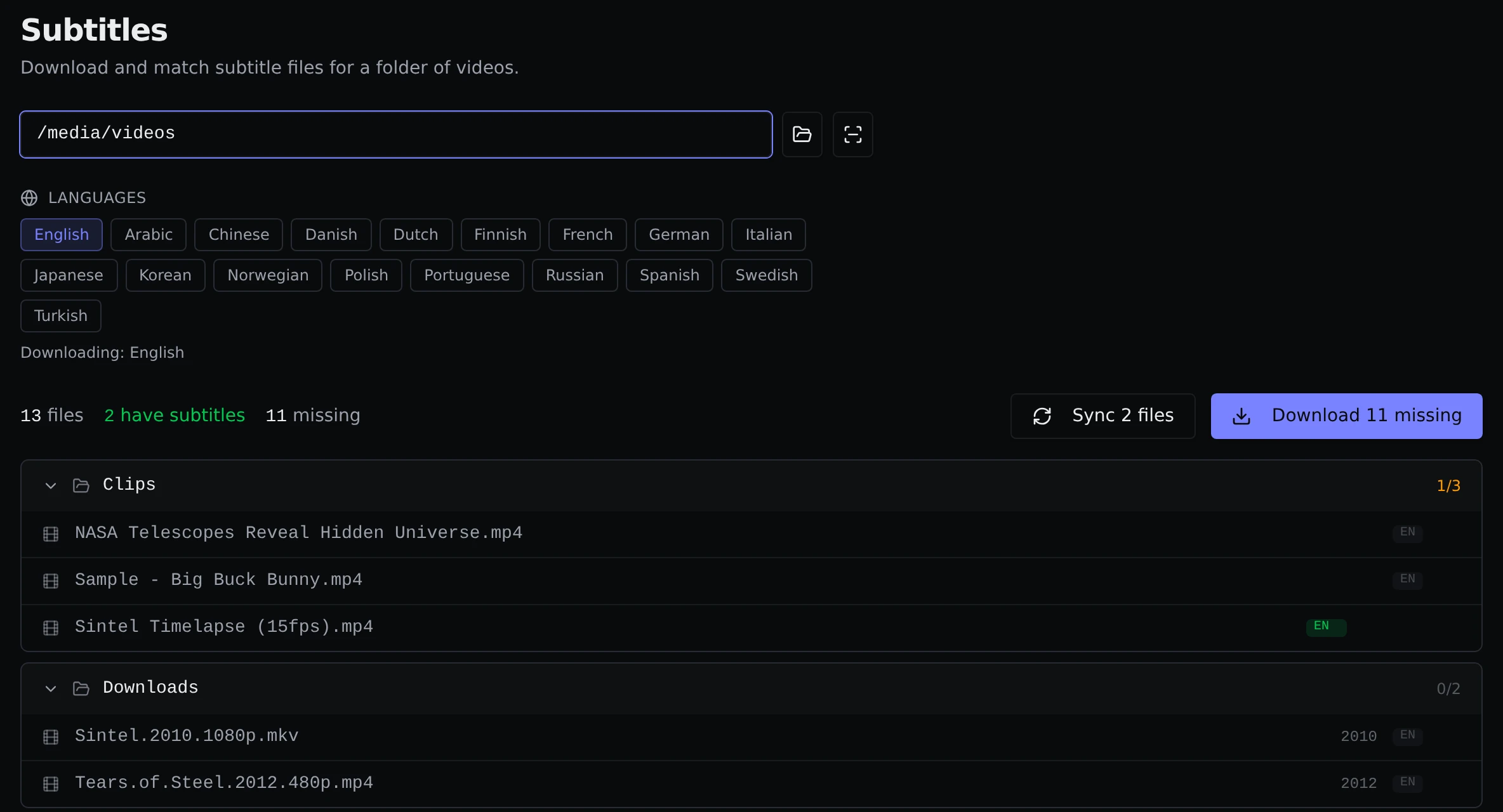
Scanning a folder
- Open Tools → Subtitles.
- Type a folder path, or click the folder button to browse. Press Enter, or click the scan button.
- Pick the languages you want. English is selected to start with, and you can choose as many as you like.
Parallax lists every video in the folder, grouped by the folder it is in, with a small badge for each language you picked. A green badge means that language is there. A grey one means it is missing. It also looks in a folder called Subs or Subtitles next to the video, which is where many releases keep theirs.
Subtitle files that sit next to a video and share its name are matched up automatically. movie.srt, movie.en.srt and movie.ar.srt are all picked up, in the common subtitle formats.
At the top you see how many videos you have, how many have subtitles, and how many are missing.
Downloading in bulk
The big button, which reads something like Download 11 missing, gets one subtitle for each missing language, for every video that needs one. A video is only skipped when every language you picked is already there.
Parallax picks the best match for each video based on its name. The progress shows next to the button, and the work also appears on the Jobs page. New files are saved next to the video with the language in the name, like movie.en.srt.
Searching by hand
When the automatic pick is wrong, or nothing was found, hover over a video and click the search icon on its row. A window opens with the title and year filled in, which you can change. Pick the right subtitle from the list. There are two places it can look, shown as tabs under Source: Subf2m, which covers most things, and YTS-Subs, which is for movies only and needs your TMDB key (add it under Settings → Keys & Accounts; until then the tab is greyed out).
Removing a subtitle
Hover over a green language badge and click the × to delete that subtitle file.
Subtitles that are out of time
Sometimes a subtitle is fine but appears too early or too late, or slowly drifts away from the speech. Sync fixes this. Parallax listens to the sound of the video and lines the subtitle up with it. It works in any language, because it matches when people are speaking, not what they say.
- The sync icon on a row fixes one video.
- Sync at the top fixes every video in the folder that has a subtitle, including ones you got somewhere else.
- Subtitles can also be synced automatically as soon as they are downloaded. You can turn that on or off with Auto-sync downloaded subtitles under Settings → Keys & Accounts.
Two tools can do the syncing, and you pick between them with Subtitle sync engine in the same place. alass is the default and also copes with extra or missing sections, like a break for adverts. ffsubsync is simpler and only fixes a constant offset or a small drift.
Watching with subtitles
Click the play icon on a row to preview the video with its subtitles. Anywhere you play a video in Parallax, a captions button appears when it has subtitle files, and you can choose which language to show.