Organize
Walk through any folder, see what is in it, and tidy it up by hand.
Organize is for the messy folders that are not part of a library: a downloads folder, a drive of old backups, a camera dump. Point it at a folder and it shows you what is inside, so you can search, move, rename and delete things.
It does not add anything to your libraries. Nothing is saved to the database and the folder is not watched. It reads the folder when you ask, and works on the files when you tell it to.
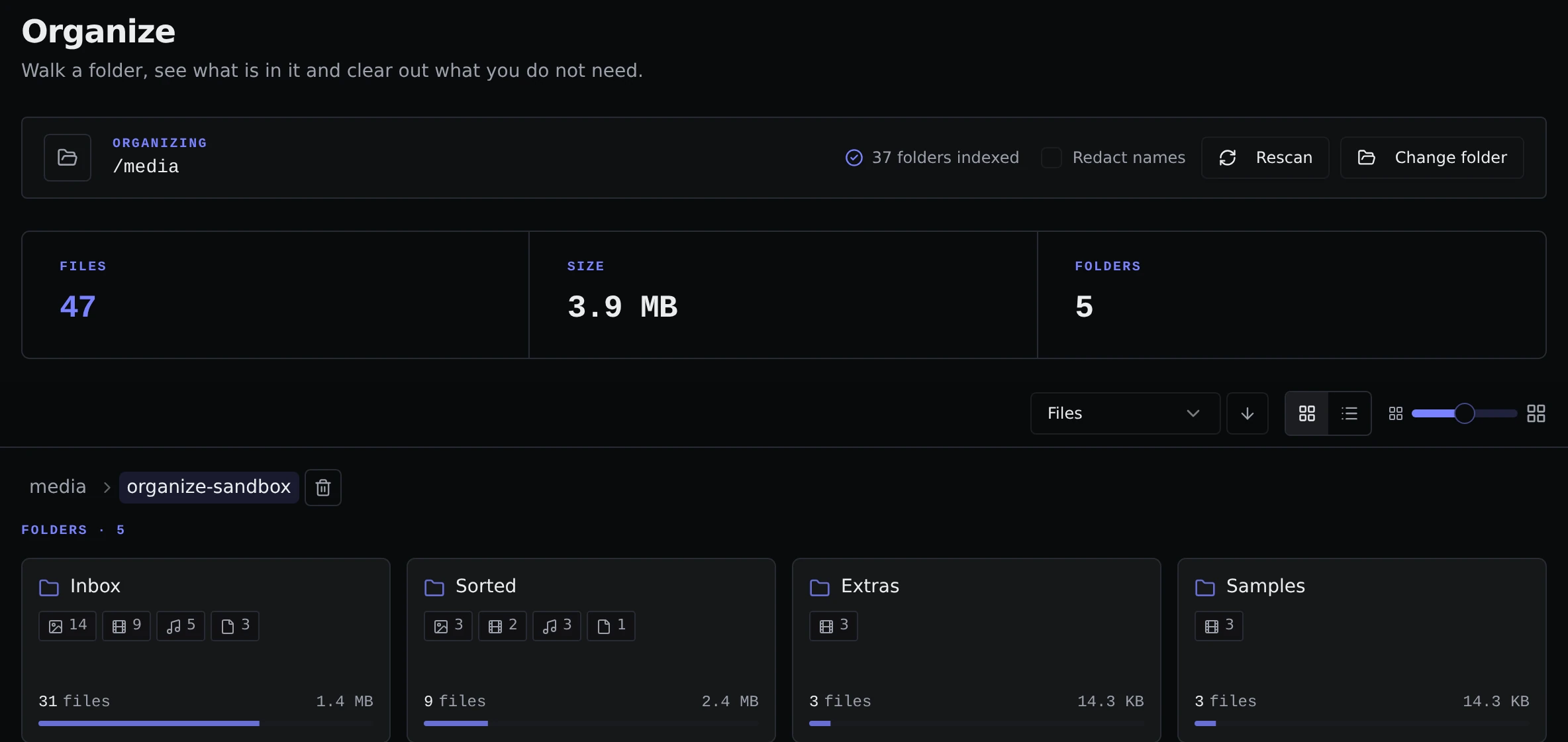
Choosing a folder
The first time, click Choose a folder and pick one. Parallax remembers it. It then scans the folder, which only counts and sizes what is inside, and shows the totals: how many files, how much space, and how many folders. Rescan reads the folder again, and Change folder picks another.
Finding your way around
Folders show as cards with a count of images, videos, audio and other files, plus the total size. Click a card to open it. The trail of links at the top takes you back up, and the browser's Back button works too, because the folder you are in is part of the address.
Use the sort menu next to the Folders heading to order them by number of files, size or name, and the buttons at the top right to switch between cards and a list. The Files section has its own sort menu.
Open a folder to see the files directly inside it, with thumbnails for pictures and videos. Click Preview or Play to look at a file without leaving the page. Details like length, size on screen and format are read in the background and fill in as they arrive, shown as "details 12 / 40".
Searching and selecting
The filter works like the one in Cleanup. You can filter on name, extension, type, size, the date a file was added, and for videos and audio, things like duration, resolution, format and bitrate.
Under the filter is a row of common names. Parallax looks at the words and phrases that show up in the file names and offers them as buttons with a count next to them. Click one to filter to those files, and expand it to narrow it down.
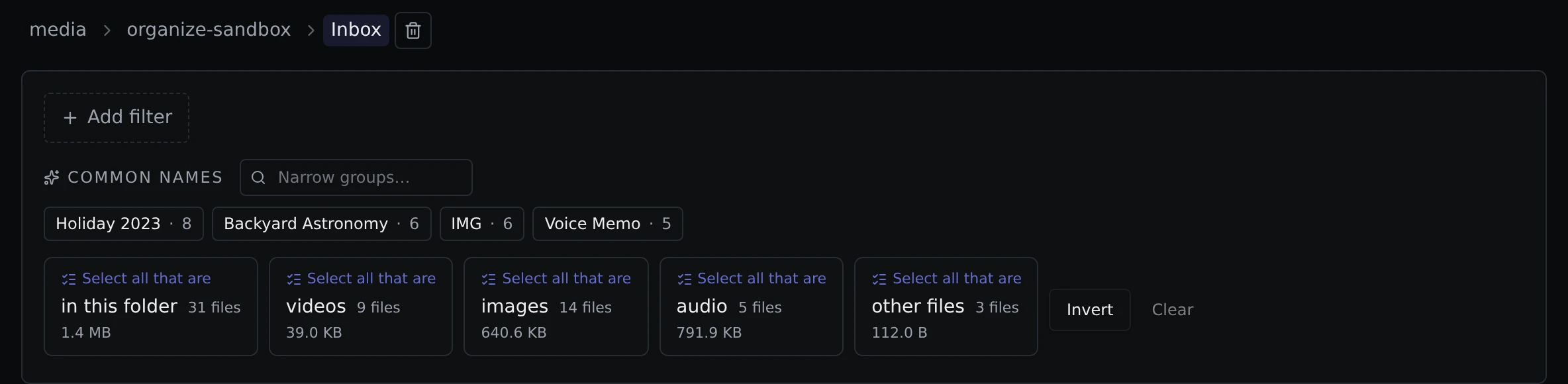
To pick files, tick them, drag a box around them, or use Select all that are, which can pick everything shown, or just the videos, images, audio or other files.
Doing something with them
A bar at the bottom shows what you have selected, with these buttons:
- Move to subfolder asks for a name and puts the files in a folder with that name inside the one you are viewing. The folder is made if it does not exist, or reused if it does. If a file with the same name is already there, the new one gets a number like
(1)rather than replacing it. - Move to folder moves the files into any other folder under the one you chose, which you pick from a small browser.
- Rename changes the name of the selected files. For one file you type the new name. For several you can find and replace text in their names, with an optional pattern match for more complex changes, and a live preview of every result before you confirm. A name that is already taken is skipped, and nothing is ever overwritten.
- Delete removes the files for good.
To rename a folder, use the pencil on its card.
Moving and renaming are safe. They never overwrite anything.
Deleting
Deleting in Organize is permanent. There is no _originals folder and no way back.
- For files, Parallax asks you to confirm and tells you how many and how much space. If that empties a folder, it asks whether to delete the empty folder too.
- For a whole folder, you also have to tick I'm sure before the confirm button works.
- The folder you chose at the start can never be deleted.
Files you delete count towards your totals on the Home page.
Hiding names
Redact names is a tick box in the bar at the top of the page, next to Rescan. When it is on, it replaces every folder and file name with a placeholder and hides the thumbnails. It is useful when you want to share a screenshot without showing what is on your disk.